 by anegin
Wear File Manager
Your watch and phone files, both ways
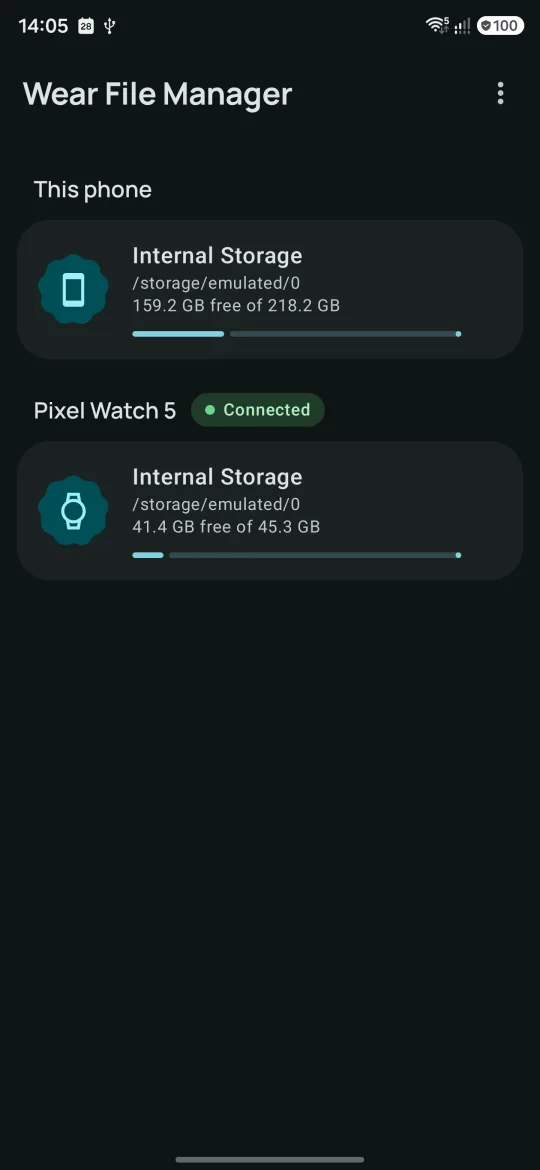
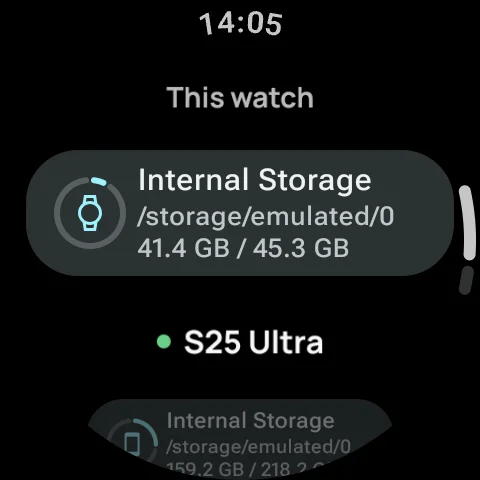
A file manager for your Wear OS watch, with a companion app for the phone. Each device shows its own storage and the other one's: manage the watch from the phone, and the phone from your wrist.
All files access: how to turn it on
Since Android 11, a file manager can reach your files outside its own folder only with the special All files access permission, which you turn on in the system settings. Wear File Manager asks for it on each device and uses it only for what you do in the app.
The easy way: in the settings
- Phone: the app opens the settings for you, turn on Allow access to manage all files.
- Watch: the app opens its App info: go to Advanced → All files access and turn it on.
Not in the settings, as on Galaxy Watch and some other watches? With a computer, once
Some watches, Galaxy Watch among them, leave this switch out of their settings. The permission still works there: you grant it once over ADB, the Android debugging tool, from a computer on the same Wi-Fi network as the watch.
- Turn on developer options on the watch: Settings → About watch → Software information, tap Software version several times until you see that developer mode is on. On other watches, tap Build number in About instead.
- Connect the watch to Wi-Fi (the same network as the computer). In Settings → Developer options, turn on ADB debugging and Wireless debugging, then open Wireless debugging → Pair new device: the watch shows a pairing code and an address.
- On the computer, install Android SDK Platform-Tools and run these commands in a terminal from its folder. Pair with the address and the code from the pairing screen:
Then connect to the address shown on the Wireless debugging screen itself (its port differs from the pairing one):
adb pair 192.168.1.20:37123And grant the access:adb connect 192.168.1.20:41845adb shell appops set by.anegin.wearfm MANAGE_EXTERNAL_STORAGE allow - Open Wear File Manager on the watch: your files are there. Turn off Wireless debugging and ADB debugging again, they use the battery.
The access stays after the app updates. Grant it again only if you reinstall the app or clear its data.
Features
Both ways
Browse the watch from the phone and the phone from the watch. Copy and move files and folders between them in either direction. SD cards and USB drives on the phone show up too.
The whole app on your wrist
Not just a remote: the watch browses, copies, extracts, views and plays on its own, with a layout made for the round screen.
Send to watch
Share files from any app on your phone with Share → Send to watch.
ZIP archives
Open archives like folders and view the files inside without extracting. Compress and extract, with a password if you need one.
Viewers and players
Images with zoom, text with JSON and XML formatting and search, audio and video. Audio and text from the other device open right away, without downloading first.
Free, no ads, no tracking
No ads, purchases or analytics, and no Internet permission. Your files travel only between your phone and your watch.
Find Wear File Manager useful? You can support my work.
Support Me